Header, footer and pop-ups
Footer
Build the footer from columns, add the newsletter and contact details, and choose what shows in the bottom row.
The footer area holds two sections: Promises, a row of up to four short promises (shipping, returns, repairs, help), and the Footer itself. Both appear on every page that uses the store's header and footer; the password page and the gift card page have their own layout. Select either one in the theme editor to change it, or hide Promises if you don't need it.

Promises: four short promises with icons, above the footer
Columns
The footer is built from blocks. Select Footer, then Add block for each column, and drag them to change the order. Each block has a Width, in columns out of 12 on desktop, so a wide newsletter can sit next to narrow link lists.
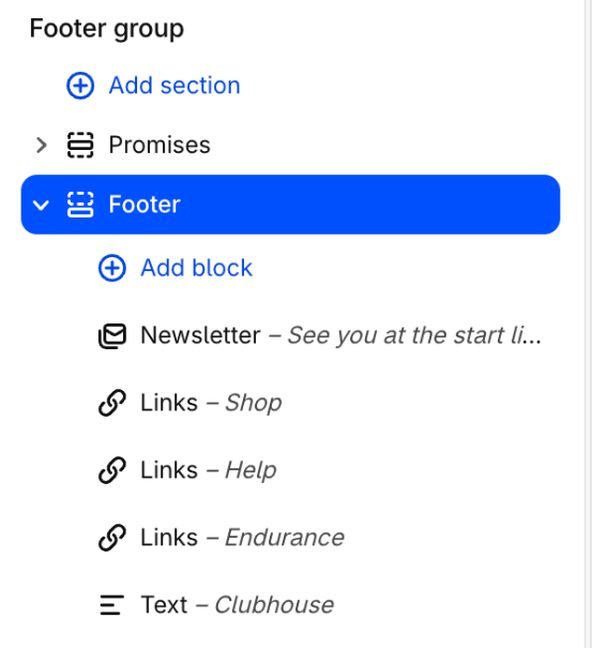
The demo footer's blocks: a Newsletter, three Links columns and a Text column
| Block | What it shows |
|---|---|
| Newsletter | A sign-up form with a label, heading, text, up to 4 small perk tags and a note |
| Links | A menu from Content → Menus. The heading defaults to the menu's title. A column with no menu, or an empty one, is left out for shoppers; in the editor it says to pick a menu |
| Brand | Your logo or store name, a short text and the social media icons |
| Contact | Email, phone, address and opening hours. Leave Email empty to use the store contact email from Settings → Store details |
| Text | A heading and text, a status line with a green dot (for example "Open today until 18:00"), a note and a button |
| Image | A photo with a caption and a link. Until you pick a photo, the editor shows a placeholder and shoppers see nothing |
| Custom Liquid | App snippets or other code |
| Empty column | Space between columns |
Up to 10 blocks.
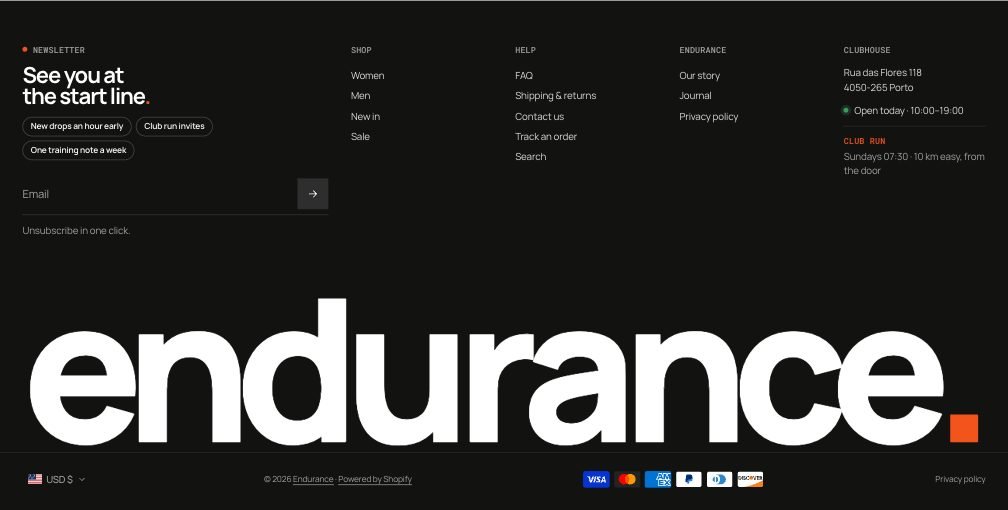
The demo footer: a wide Newsletter column, three Links columns and a Text column with an opening-hours status line, then the large wordmark and the bottom row
- Column headings: a small label (default), or a Medium or Large heading in the text color, for the Links, Text and Contact columns.
- Line above the footer separates it from the section above when both share a color.
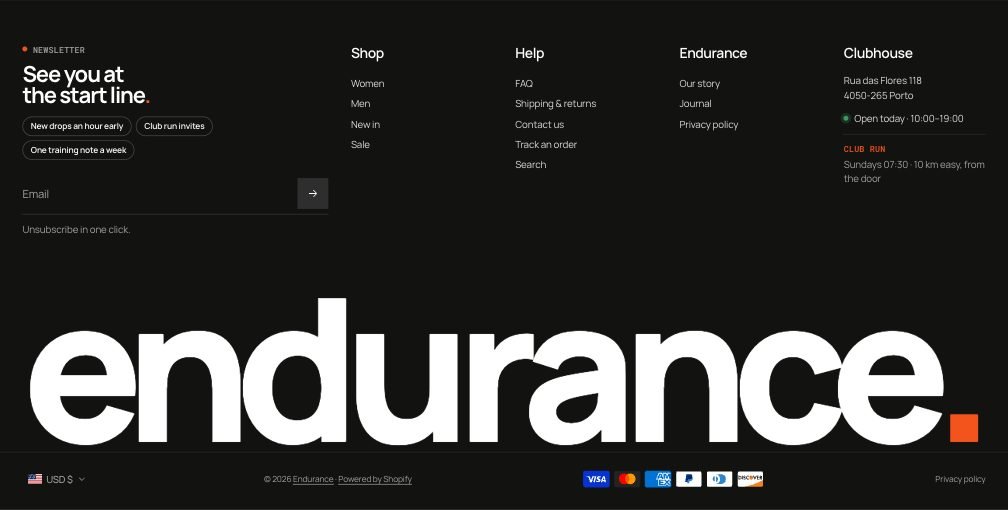
Column headings set to Large, with the line above the footer: Shop, Help, Endurance and Clubhouse as headings in the text color
Bottom row
| Setting | What it does |
|---|---|
| Show large wordmark | Your store name in large type across the footer. Wordmark text replaces it with something shorter; End with an accent dot adds the dot. Both show while the wordmark is on. A text too long for one line at the smallest size wraps onto more lines |
| Show social media links | Icons for the accounts in Theme settings → Social media, under the Newsletter column. The Brand block has its own switch for them |
| Show Follow on Shop | Lets shoppers follow your store in the Shop app, from a button under the Newsletter column. Needs Shop Pay |
| Show country and language selector | The same selectors as in the header |
| Show payment icons | The payment methods your store accepts |
| Show policy links | Links to the policies in Settings → Policies |
| Bottom menu | Small links next to the copyright, such as terms or accessibility |
| Copyright text | Replaces the store name after © and the year, for example your company's legal name. Leave empty for the store name, linked to the home page |
| Show “Powered by Shopify” | The Shopify link after the copyright. Turn it off to remove it |
Phones
- Collapse link columns on phones turns each Links column into a row that opens with a tap, so the footer stays short. A row the shopper opened stays open if the screen turns.
- Show the newsletter first on phones moves the Newsletter block to the top of the footer.
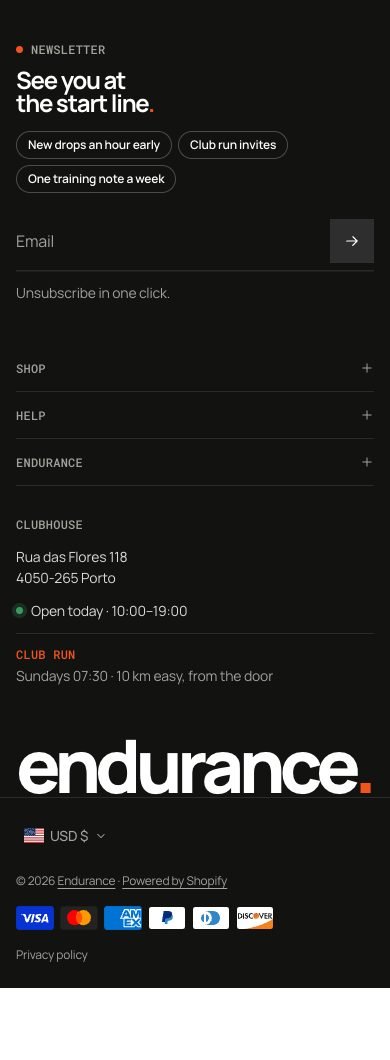
The footer on a phone with the link columns collapsed: Shop, Help and Endurance open with a tap
After someone signs up
A sign-up from the footer (or from a blog or a drop form) opens a thank-you message. Set its image, heading, text, discount code and button in Theme settings → Newsletter thank-you. The newsletter pop-up keeps its own message. If the shopper has already moved on to something else when the sign-up goes through, the window doesn't open over what they are doing: the form says the sign-up worked, and when you set a discount code a Show my welcome code button under the form opens the window.
Each completed sign-up is added to Customers in Shopify admin with email marketing consent and the tag newsletter, subject to Shopify's own spam checks and your store's consent settings.
Send us a screenshot and your store link. We reply within two business days.